How I Installed a Custom Watch Face on Xiaomi Smart Band 10 from an iPhone (No Android)
I have a Xiaomi Smart Band 10. The screen is nice, but none of the stock watch faces were for me.
I had a design in mind. A terminal vibe, green digits, a plain screen.
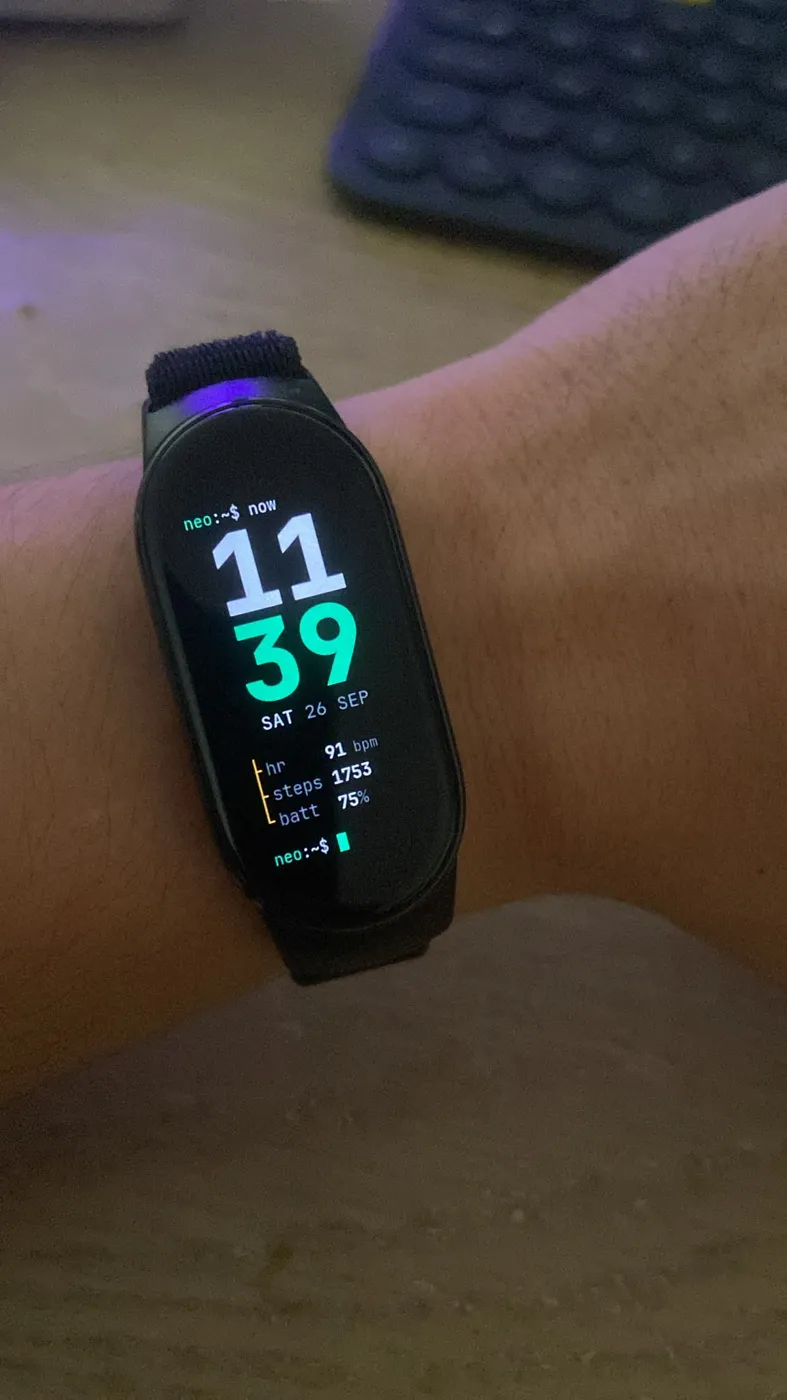
Designing it was the easy part. The real question was: how would I get it onto the band without an Android phone?
In short: I prepared the faces on Windows and packaged them into a .face file. Then I developed a small iPhone app. It reads the pairing key Mi Fitness stores on the phone and sends the face to the band over Bluetooth. No resetting the band, no re-pairing.
Why wasn't Mi Fitness enough?
Mi Fitness gives you two options. Pick a ready-made face from the store, or put a photo behind a fixed template.
You can't change the digits, the layout, or the AOD screen. There's no way to upload your own file either.
Why don't the Android solutions work on iPhone?
Every solution I found was for Android. Notify for Mi Band, Gadgetbridge and the other custom face uploaders all run on Android.
All I had was an iPhone and a Windows PC.
First I thought about an Android emulator. It doesn't work, because an emulator can't connect to real Bluetooth.
That left one option: develop my own iPhone app.
A watch face isn't a single image
The Band 10 screen is 212×520 pixels. Everything is built for that size.
Hour, minute, date, steps, heart rate and battery are separate pieces. The band combines them with live data and draws them on screen.
I had AI generate the designs as images. Then I split each one into parts on Windows:
- Background: Generated images come with sample data baked in, like "01:27" or "8,412" steps. If you don't remove it, the screen always shows the same value. On flat backgrounds I painted those areas with the background color. On glowing backgrounds I masked the text and filled it from the surroundings.
- Digits: I cut every digit from 0 to 9 into its own file. They all need to be the same size. Once I broke the aspect ratio and the digits looked vertically stretched. Now I keep the scale equal on both axes.
- Small text: Day and month names, %, ° signs are usually missing from the set. I generated them from a font.
- Layout: I measured coordinates on the reference image and converted them to screen pixels.
For packaging I used the open-source band10-toolkit. It gives a live preview, catches errors and produces the .face file the band expects.
I made a few more faces the same way:
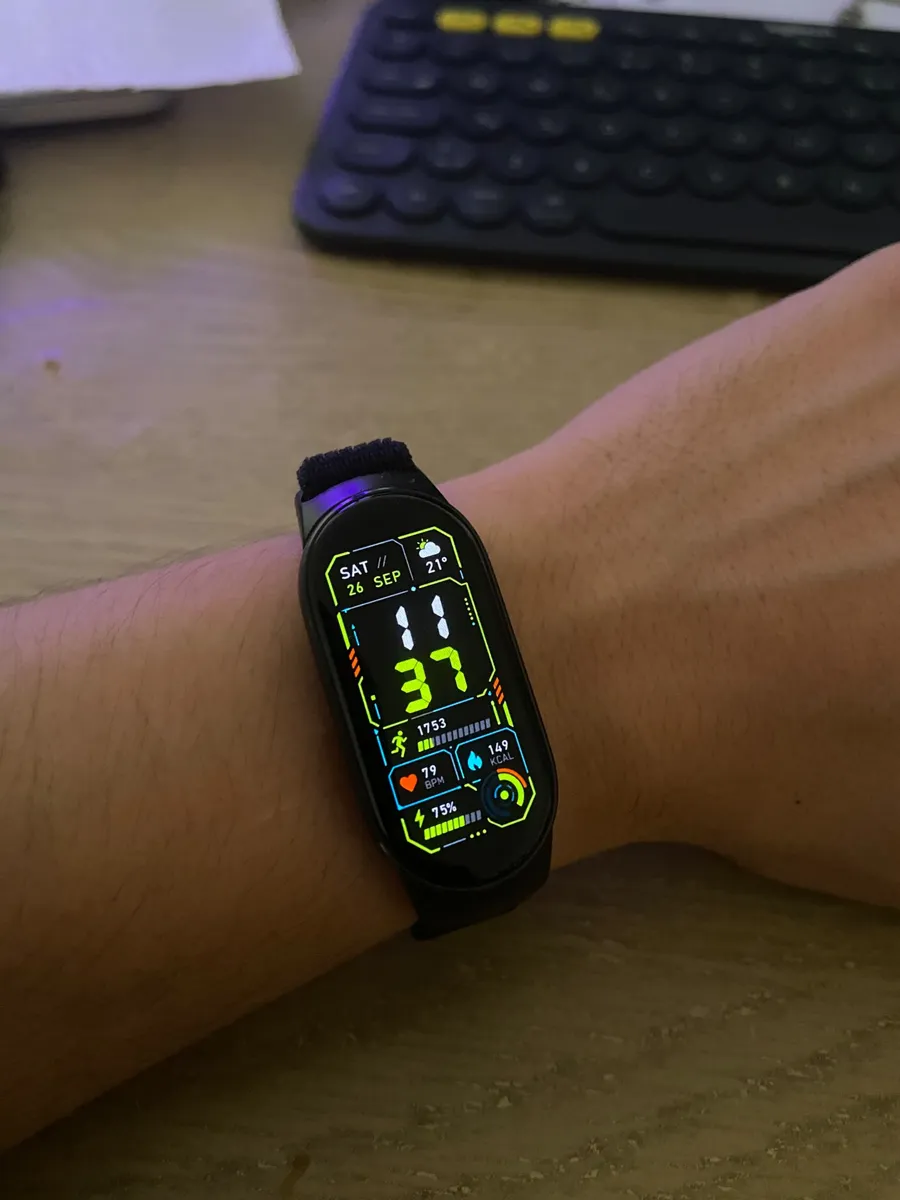
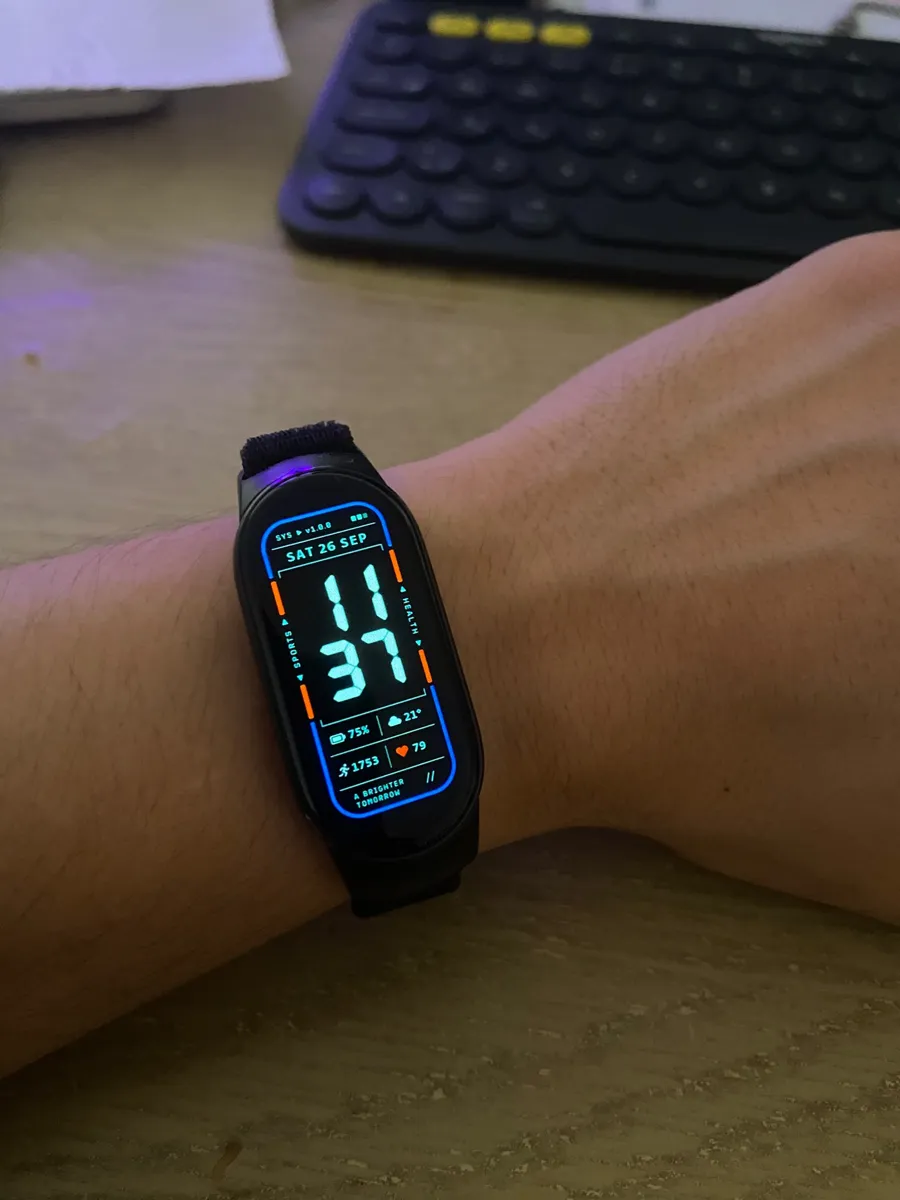
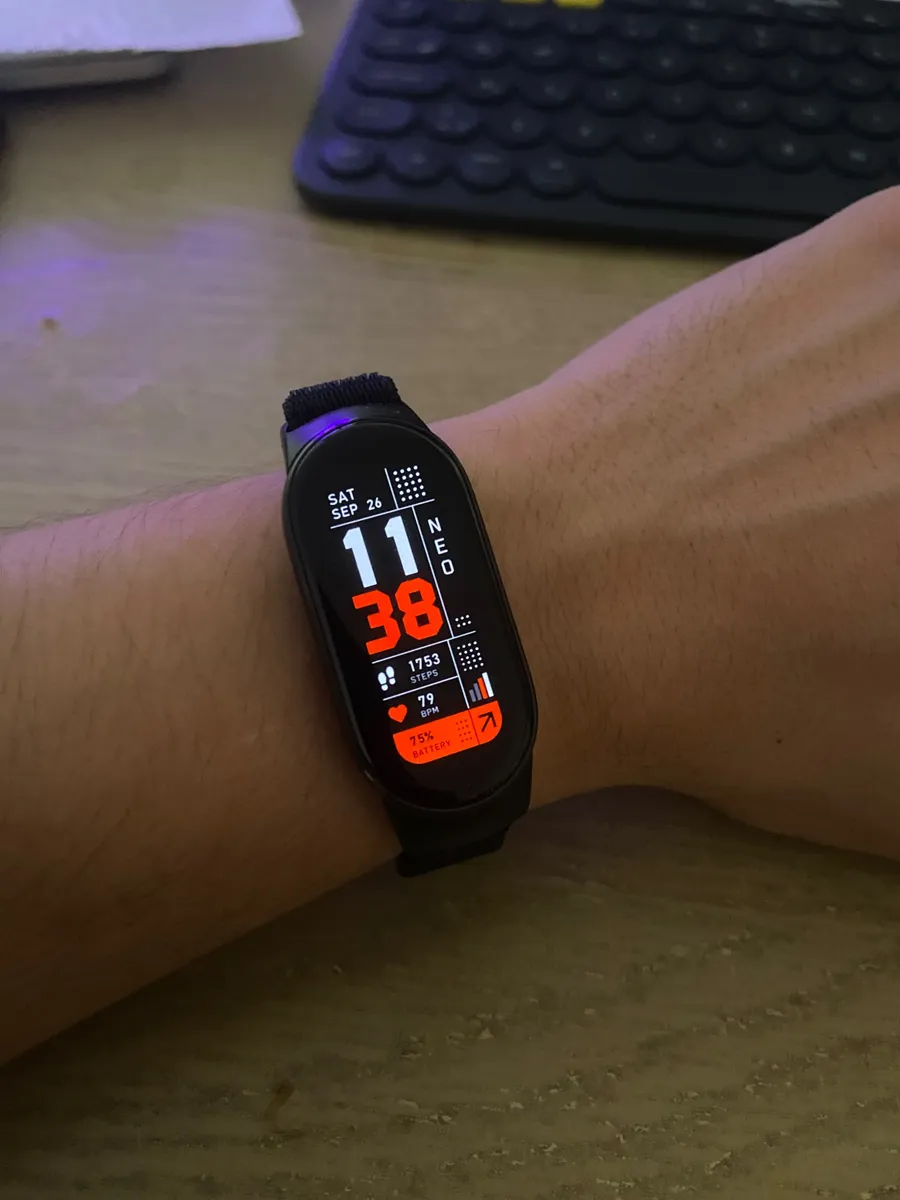
The AOD screen needs its own design
AOD is the clock shown while the screen is off. It's designed separately from the main face.
After a few tries, I settled on these rules:
- The time stays in the same place and at the same size as in normal mode. No jump during the transition.
- Only the time remains, maybe the date.
- Colors are dim, the background is pure black.
I also learned something about readability. 9–10 px text that looks fine on a computer is unreadable on the wrist. I made small text at least 12 px and values 20 px or more.
Can a second app see the band while Mi Fitness is connected?
I needed to know this before developing the app.
I developed a small test app. Its only job was to find the band and list the services it exposes.
The answer was yes. Even with Mi Fitness connected, the band opens its own data channel to a second app. I could even read the battery level. That's when I knew the project was possible.
I developed the actual app in React Native (Expo), with the Bluetooth layer inside the same app.
I used Claude and Codex actively throughout the process. They sped me up while studying the open-source projects, developing the Bluetooth code and debugging. I tested every change on the real band. The final check was always mine.
Without the key, the band won't talk
The band doesn't talk to just any app. During pairing, a key is created between Mi Fitness and the band. Without that key you can't send a face.
The key lives in Mi Fitness's own data on the phone. On iPhone, the Files app shows an "On My iPhone › Mi Fitness" folder. The key is inside a database file in that folder.
I added a part to my app that reads this file. I pick the Mi Fitness folder once. The app finds the key and stores it in the phone's secure storage (Keychain).
Here I hit a surprise. The sample code online looked for the key in a record called registerList_de. Mine turned out to be registerList_sg. The suffix is the region of the Xiaomi server the account is tied to. I fixed the code to check all regions.
The key's location can differ depending on your account. If sample code doesn't work for you, this is the first place to look.
Sending the face to the band
I didn't reverse-engineer the band protocol from scratch. Open-source projects have been doing this for years, and Gadgetbridge is the biggest. I studied them and adapted what I learned to my app. I didn't copy their code.
The flow roughly looks like this:
- Find the band and connect.
- Authenticate with the key.
- Send the face file in small chunks.
- Let the band acknowledge each chunk.
- Finally, activate the face.
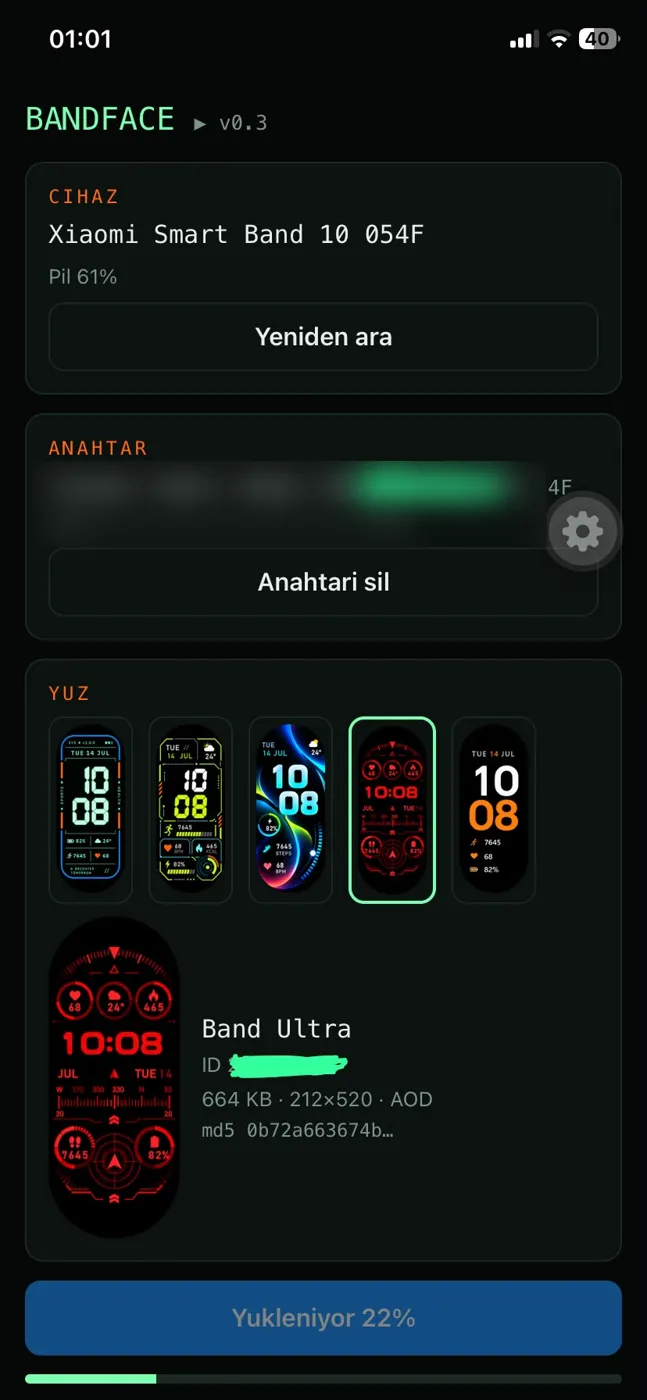
I tapped "Upload to band". The progress bar filled up and my design appeared on my wrist.
From an iPhone, without touching Android.
What I learned from this project
- Uploading is slow. A 1 MB face takes a few minutes, because you have to wait for each chunk's acknowledgment. I tried sending chunks back to back without waiting. The band stopped responding after the fifth chunk. I went back to the slow but reliable method.
- File size matters. Faces over 1 MB are more likely to fail. Avoid large background images.
- Some elements are just decoration. The Band 10 has no compass. Ring and bar fills can be bound to data, but that part is still experimental.
- Mind font licenses. If you're going to share a face, use openly licensed (OFL) fonts. Rendering Windows fonts into images and distributing them violates their license.
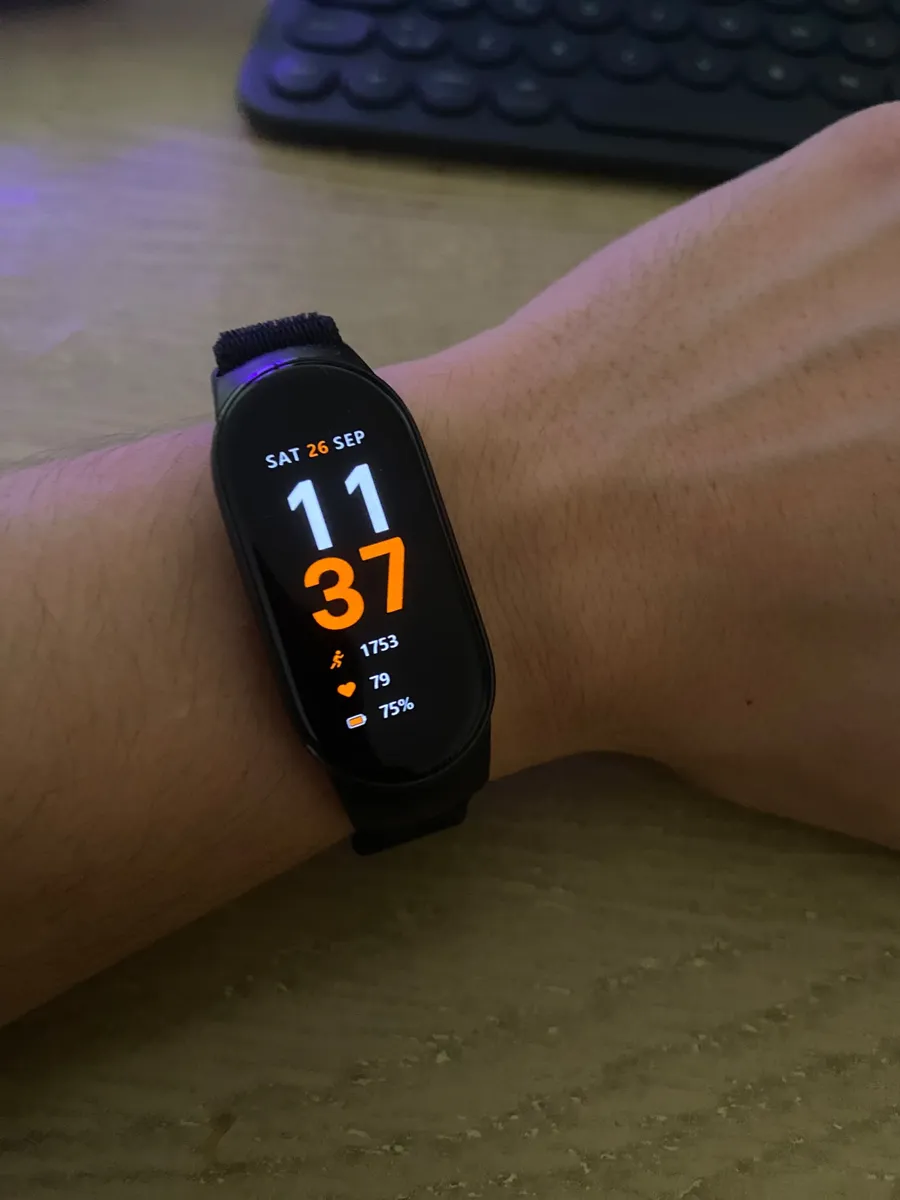
- Simple designs work better. Anything you can't read at a glance on your wrist is noise.
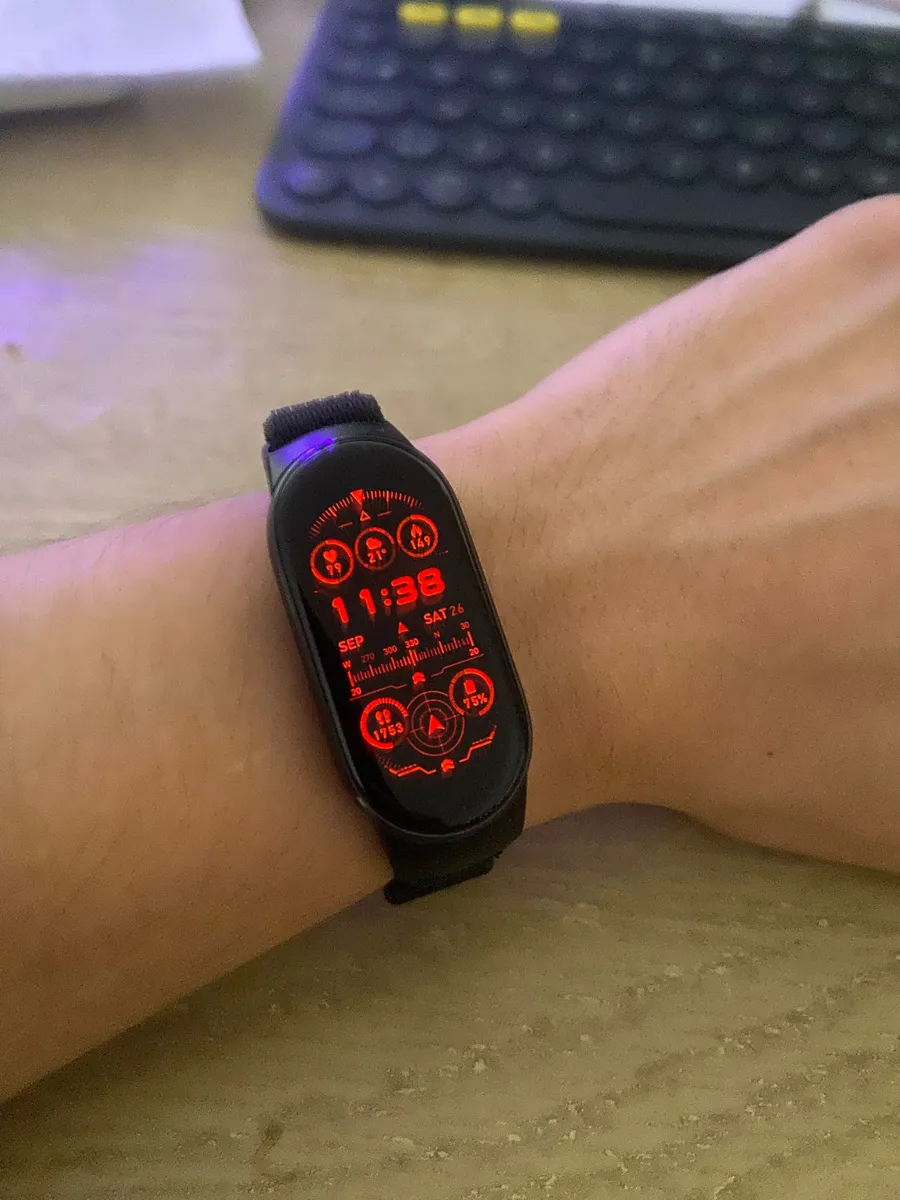
The compass on this face is pure decoration. For daily use, I went back to the simplest one:
Resources
The open-source projects that made this possible:
- band10-toolkit: A tool for designing and packaging Band 10 watch faces.
- Gadgetbridge: The open-source reference for talking to Xiaomi devices.
- xiaomi-band-ios-export: Shows where the key lives in Mi Fitness's iOS data.
- my-band: An open-source Swift app that connects to the Band 10 from an iPhone over Bluetooth.
There's very little written about doing this on iOS. I hope this post saves someone trying the same thing a few hours.